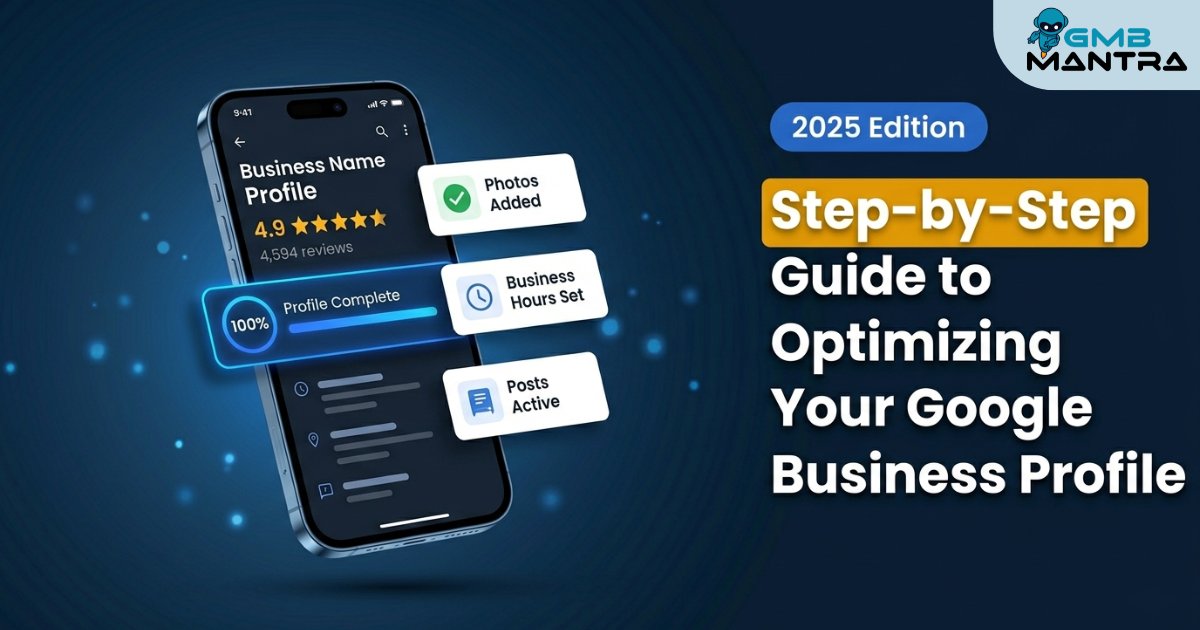
Step-by-Step Guide to Optimizing Your Google Business Profile
Last month, I watched a dental practice in Austin lose its entire Map Pack position overnight. No warning. No notification. Just... gone. The culprit? A single NAP inconsistency between their GBP listing and a forgotten Yelp page from 2019. They'd spent six months building reviews, uploading photos, posting weekly—and one rogue citation undid all of it.
I've seen this pattern repeat across healthcare clinics, chiropractic offices, fitness studios, and salons more times than I can count. The profiles that look complete are often the ones hemorrhaging visibility because of invisible gaps.
Here's your promise: By the end of this guide, you'll have a phase-by-phase system to optimize your Google Business Profile so it ranks in the Map Pack, qualifies for AI Overviews, and actually converts searchers into patients, clients, or members.
What You Need Before Touching Your Profile
Don't start editing anything yet.
You need three things locked down first: access to your GBP dashboard with owner-level permissions, your exact NAP data (as it appears on your website, not what you think it says), and a citation audit tool like Moz Local or BrightLocal ready to go.
Stop/Go test: Can you pull up your business name, address, and phone number right now and confirm it matches your website footer character-for-character? If not, fix that before reading another word.
Phase 1: Nail Your Core Identity Fields
This is where 60% of profiles silently fail.
Step 1: Set your primary category with precision. This is the single heaviest local ranking signal for your listing. If you're a chiropractic office, "Chiropractor" is your primary category—not "Health & Wellness" or "Physical Therapist." One category. The right one. Match it to what 80% of your website content actually describes.
Step 2: Lock your NAP. Enter your business name exactly as it appears on your storefront and website. No keyword stuffing in the name field (I know it's tempting, but Google's suspension algorithm catches this fast). Your address and phone number must be identical across your site, your GBP, and every directory you've ever touched.
NAP discrepancies hurt visibility in over 50% of cases and can trigger the proximity filter, hiding you from 70% of mobile searchers.
Step 3: Define service areas carefully. For service-area businesses—mobile therapists, home-visit wellness practitioners—edit your polygons precisely. Vague service areas dilute your hyperlocal relevance.
Step 4: Set business hours AND special hours. Mismatched special hours for holidays trigger trust signal drops. I've seen salons get flagged for this during a single long weekend.
Visual checkpoint: In your GBP dashboard, you should see your primary category badge directly under your business name, a green verified badge on your NAP, and your hours displaying without any warning icons.
Verification: Search your business name incognito. If your listing appears in local SERPs with matching hours and correct contact info, Phase 1 passes.
Phase 2: Build Your Content Layer
This is where you feed Google's understanding of what you do and who you serve.
Step 1: Write a chunked business description. Forget paragraph-style descriptions. Use short, declarative sentences—two sentences max per idea. Gemini parses chunked data cleanly, and this structure makes your profile eligible for AI Overviews. Lead with your primary service, your location, and your differentiator.
Step 2: Add every service with individual descriptions. Service listings boost discovery searches by 34%. Each service gets its own entry with a price range and a 1-2 sentence description. For a dental practice, that's "Teeth Whitening," "Root Canal Therapy," "Pediatric Dentistry"—each one separate.
Step 3: Stack your attributes. Select every relevant attribute: "wheelchair accessible," "LGBTQ+ friendly," "veteran-owned," whatever applies. These trigger rich snippets and show up in AI Overviews. Pick at least 5.
Step 4: Seed your Q&A section. Don't wait for patients or clients to ask questions—post them yourself. "Do you accept walk-ins?" "What insurance do you take?" "Is parking available?" Seed 5+ questions with clear answers. This controls the narrative before competitors or random users hijack it.
Visual checkpoint: Your service listings should be expandable with prices and descriptions visible. Attribute icons should appear below your business description. Your Q&A section shows your seeded questions with upvotes.
Verification: Check that your services appear when you search "\[your service\] near \[your city\]" in an incognito window.
Phase 3: Visual Optimization That Actually Moves the Needle
Photos aren't decoration. Google's Vision AI scans every upload you make.
Step 1: Set a hero image that matches your primary category. If you're a gym, your hero image should show your training floor—not your logo. This is what appears in SERPs and Maps first.
Step 2: Upload geotagged photos weekly. Use an EXIF editor to embed your business coordinates into every image before uploading. Non-geotagged photos get minimal Vision AI recognition. Aim for 5+ team and location shots per week.
Step 3: Add interior, exterior, and team photos. Google auto-categorizes these. Optimized profiles with fresh photos pull 40% more clicks than organic results in the Map Pack.
Visual checkpoint: Your hero image displays prominently in search results. GBP Insights shows photo views accounting for more than 20% of total profile actions.
Verification: If photo views are below 20% of total actions, your uploads are failing Vision AI. Re-geotag and re-upload.
> Struggling to keep up with weekly photo schedules and post management? If you're managing GBP optimization for a healthcare practice, salon, or fitness studio, the posting and monitoring cadence gets overwhelming fast. GMBMantra lets you schedule posts, track performance trends with keyword heatmaps, and manage everything from a single dashboard—so the optimization work you just did in Phases 1-3 doesn't decay from neglect.
Phase 4: Reviews, Posts, and Ongoing Signals
Step 1: Respond to every review within an hour. Review sentiment velocity matters more than raw volume. Google prioritizes profiles with 80%+ positive recency. Automate response workflows with tools that use sentiment analysis so no review sits unanswered.
Step 2: Post weekly GBP Posts using data chunks. Short updates, offers, or event announcements formatted as 1-2 sentence facts. These feed Gemini's freshness signals. Verify each post appears in Maps within 24 hours with a "NEW" badge. Use a Google Business Profile automation solution for best results.
Step 3: Enable messaging and booking. Profiles with active messaging and booking see 45% more conversions. Test your messaging by sending yourself a message in incognito—if it delivers and notifies instantly, you're unblocked.
Step 4: Implement LocalBusiness Schema on your website. This syncs your site data with your GBP as the AI's "official script." Use Merkle's schema generator if you don't want to code it manually.
Verification: Respond to a test review—confirm the reply shows publicly within one hour.
The Ugly Truth: Ghost Errors That Kill Profiles
Here's what the official help docs won't tell you:
Problem
The Weird Fix
Source
Sudden Map Pack drop with no changes made
Audit 50+ directories for NAP drift; force-resubmit via GBP support with screenshots
Community forums, Moz Local data
Zero AI Overview appearances despite optimization
Rewrite descriptions as chunked 1-2 sentence facts; add matching LocalBusiness Schema to site FAQ
Practitioner testing, 2024-2025
Profile suspended without any notification
Bulk-edit special hours via GBP API; post weekly "correction" updates to rebuild trust signals
GBP support threads
Photos uploaded but zero visibility impact
Use EXIF editors for geotags; upload 5+ location shots weekly to trigger Vision AI recrawl
Vision AI practitioner guides
These aren't edge cases. Profiles with incomplete fields show 70% invisibility rates in local packs.
Frequently Asked Questions
How long does GBP optimization take to show results?
Initial Map Pack gains appear within 1-4 weeks with full profile completion. Photo and review momentum builds visibility over 4-8 weeks. Full conversion lift—around 45%—typically takes 3-6 months of consistent weekly posting and review management.
Why did my primary category stop helping my rankings?
Your primary category needs to match 80% of your website's actual content. Frequent category changes also reset ranking signals. Pick once, pick correctly, and build your site content around it. For help with ongoing rank tracking and competitor analysis, automated tools save hours of manual checking.
How do I fix photos that aren't boosting my visibility?
Add geotags using an EXIF editor, upload 10+ images weekly, and set a hero image matching your primary category. If GBP Insights shows photo views below 20% of actions, Vision AI isn't registering your uploads.
Can service-area businesses rank in the Map Pack?
Yes—but you need precisely defined service area polygons and a hidden address. Vague service areas dilute relevance for hyperlocal queries, which is where most mobile searchers convert.
What Comes Next
You've got the framework. The profiles I see winning in healthcare, fitness, and wellness niches aren't the ones with the fanciest photos—they're the ones where someone actually maintains the listing every single week. Review responses, fresh posts, citation monitoring, competitor tracking.
That's the real work. And it's exactly where most businesses quietly fall behind.
> Keep your GBP optimization from decayingGMBMantra automates review responses with sentiment analysis, schedules GBP Posts, and gives you trend visualization so you can spot ranking drops before they become ghost errors.