How to Actually Manage Multi-Location Google Business Profiles Without Losing Your Mind
Last Tuesday, I watched a franchise owner with 23 locations spend 40 minutes updating holiday hours—one profile at a time. She alt-tabbed between browser windows like a pianist playing a concerto nobody asked for. By location 14, she'd accidentally set two stores to "Temporarily Closed."
That's not a workflow. That's a hostage situation.
Here's what this guide delivers: a step-by-step system for centralizing your multi-location Google Business Profile management so you stop bleeding hours on repetitive tasks and start focusing on what actually moves local search visibility—reviews, posts, and local pack ranking signals.
Why Centralized Dashboard Management Changes Everything for Multi-Location Businesses
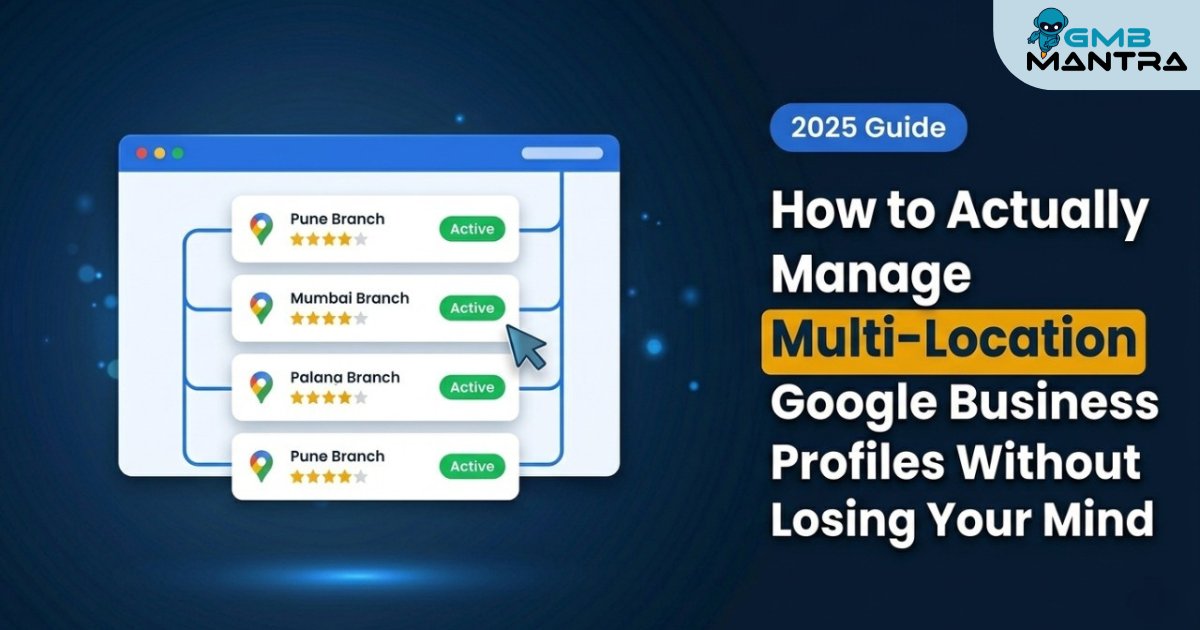
A centralized dashboard consolidates every Google Business Profile action—posts, reviews, hours, photos, Q&A—into a single interface, eliminating the need to log into individual profiles. For businesses with 5+ locations, this reduces management time by roughly 60-70% while dramatically cutting the human errors that tank Google Maps optimization.
Here's the thing most guides won't tell you: the pain doesn't start at 50 locations. It starts at four. That's the threshold where manual management becomes unsustainable—not because the tasks are hard, but because the cognitive switching cost between profiles creates mistakes that compound. Wrong categories on one listing. Stale photos on another. A review sitting unanswered for 11 days because it fell through the cracks.
I've seen businesses hemorrhage local business lead generation potential for months before they even realize the problem exists.
The Decision Matrix: What You Need Before Step One
Before you touch any dashboard tool, verify these prerequisites:
- Ownership verification on every location. Not manager access. Owner access. I can't stress this enough—roughly 35% of multi-location businesses have at least one profile where ownership was never properly transferred from a former employee or agency. Check this now. Go to each profile's "Users" section in Google Business Profile and confirm.
- Consistent NAP data. Your Name, Address, and Phone number need to match across every listing and your website. Inconsistencies here will undermine everything you do downstream.
- A Google Business Group set up. If you're managing 10+ locations, you need a Business Group (formerly "Organization account"). This is the container that lets bulk management actually work.
- Your location data in a spreadsheet. Every address, phone number, primary category, secondary categories, business hours, and service area—exported and verified.
Verification Check: You're ready for Step One when you can open a single spreadsheet and see every location's core data without needing to log into Google to double-check anything. If you're still cross-referencing, you're not ready.
Phase 1: Structuring Your Google Business Group
Log into your Google Business Profile manager. Click the organization name in the top left. If you don't see one, create a Business Group first—this is the umbrella that houses all your locations.
Steps:
- Navigate to business.google.com and select "Create a business group."
- Name it something functional (your brand name works fine—don't overthink this).
- Invite yourself as Primary Owner of the group.
- Begin adding existing locations by transferring them into the group.
Visual Checkpoint: Once a location is added, you'll see it listed under your group with a green "Published" badge. If you see "Suspended" or "Duplicate," stop. That's a separate fire to put out before proceeding.
Verification: Click into the group view and confirm every location appears. The total count in the top bar should match your spreadsheet.
Friction Warning: Transferring ownership into a Business Group sometimes triggers a re-verification request from Google. Don't panic. This happens in maybe 15-20% of transfers. Accept the re-verification, and it typically resolves within 72 hours. But if you're doing this for 30 locations simultaneously—stagger the transfers over a few days. Bulk transfers can flag Google's automated review systems.
Phase 2: Implementing Bulk Actions for Local SEO Automation
This is where the time savings get real.
Once your locations live inside a single group, you can push updates across multiple profiles simultaneously. Hours changes, holiday schedules, new photos, posts—all from one screen.
Steps:
- From your group dashboard, select the locations you want to update (use Ctrl+Click for specific ones, or "Select All").
- Choose the action: Update hours, create post, upload photos, or edit attributes.
- Apply the change. Google processes bulk updates in batches, so don't expect instant propagation.
Visual Checkpoint: After submitting a bulk update, each location will show a "Pending" status that shifts to "Updated" within 10-30 minutes. If any location shows "Failed," click into it—there's usually a character limit violation or a category mismatch causing the rejection.
Verification: Spot-check 3 random locations on Google Maps directly. Don't just trust the dashboard status. I learned this the hard way after a bulk hours update showed "success" on the backend but didn't actually propagate for two locations because of a silent API timeout.
Here's an expert nuance most people miss: bulk posting is powerful, but identical posts across all locations can actually hurt your local pack ranking. Google's algorithm is increasingly sophisticated about detecting templated content across profiles in the same vertical. Customize at least the first sentence and the CTA for each location cluster. Group locations by region or service offering and create 3-4 post variants instead of one.
Phase 3: Centralizing Review Management
Reviews are the single highest-impact factor for local search visibility that most multi-location businesses handle poorly. And "poorly" usually means "slowly."
The data backs this up: businesses that respond to reviews within 24 hours see roughly 33% more engagement on their profiles. But when you're managing 15+ locations, checking each profile's review feed daily is a non-starter.
Steps:
- Set up review notifications at the group level so every new review across all locations hits one inbox.
- Create response templates—but (and this matters) build them as frameworks, not copy-paste scripts. A template like "Thank you \[Name\], we're glad your experience at our \[City\] location was \[positive detail\]" gives you speed without sounding robotic.
- Prioritize negative reviews. Respond within 4 hours when possible. A 1-star review sitting unanswered for a week does more damage than most business owners realize.
Visual Checkpoint: Your centralized inbox should display reviews sorted by recency, with a clear flag for unanswered ones. If you see a backlog older than 48 hours, that's your first task.
Verification: After responding, refresh the Google Maps listing for that location. Your response should appear within minutes.
Which brings me to something I've been recommending to clients who manage more than a handful of locations: GMBMantra handles this particular pain point exceptionally well. Their AI-powered review response system uses sentiment analysis to generate personalized replies—not generic "thanks for your feedback" boilerplate, but actual context-aware responses that you can approve and publish from a single dashboard. It's become a natural next step for businesses that have outgrown manual review management but aren't ready to hire a dedicated team for it. The platform also handles post scheduling and provides keyword heatmaps for local SEO optimization, which ties directly into the Google Maps optimization workflow we're building here.
Phase 4: Monitoring Performance Across Locations
You can't improve what you don't measure—but measuring 20+ locations individually is how you end up drowning in spreadsheets.
Steps:
- Use the Insights tab at the group level to compare performance across locations.
- Track three core metrics weekly: search queries driving discovery, direction requests, and phone calls.
- Identify underperformers—locations falling more than 25% below your portfolio average need individual attention.
Verification: Export monthly performance data and compare quarter-over-quarter. Locations with declining direction requests often have a Google Business Profile issue—wrong pin placement, missing attributes, or stale content.
Troubleshooting the Ghost Errors Nobody Talks About
Here's one that drove me up a wall for two weeks: after bulk-updating business descriptions, three locations reverted to their old descriptions within 48 hours. No error message. No notification. Just... silently rolled back.
I'll be honest, I got stuck here too, until I realized Google's "suggested edits" from users and Google's own data sources can override your updates if Google's system has conflicting information. The fix? After any bulk update, check each location 72 hours later. If Google reverted your change, re-submit it manually for that specific location and add a supporting photo or attribute update at the same time. This seems to signal to Google's system that the update is intentional.
Another ghost error: duplicate listings that don't show up in your dashboard but appear on Maps. These phantom duplicates siphon reviews and confuse customers. Search your brand name + each city on Google Maps directly. If you find duplicates, mark them as duplicate through the "Suggest an edit" flow—and do it from an account that isn't your business account for faster processing.
FAQ
How many locations can I manage from a single Google Business Profile dashboard?
Google's native Business Profile manager supports unlimited locations within a Business Group. However, performance noticeably degrades above 100 locations in the native interface—bulk actions take longer to process, and the Insights tab can timeout. For portfolios above 100, a third-party platform like GMBMantra that connects via API handles scale more reliably without the UI lag.
Why did my bulk update fail for some locations but not others?
Failed bulk updates almost always trace back to one of two causes: a category mismatch (the update references an attribute not available for that location's primary category) or a character limit violation in the business description field. Check the failed locations individually—the error detail is usually buried in the edit history, not surfaced in the bulk action summary.
How do I prevent Google from reverting my profile edits?
Google's system cross-references your profile data with third-party sources. If there's a conflict, Google may revert your edit. The most reliable prevention method is ensuring your website, local business listings, and all citation sources show identical information. Consistent data across sources reduces the likelihood of Google overriding your updates by a significant margin.
Can I schedule Google Business Profile posts in advance across multiple locations?
Google's native tool doesn't support post scheduling. You'll need a third-party platform for this. Scheduling and analyzing posts across locations from a centralized dashboard is one of the biggest time-savers for multi-location businesses running weekly or bi-weekly content calendars.
So what's your next move? Pick the phase that matches where you're stuck right now—don't try to overhaul everything in a single afternoon. Structure first, then automation, then optimization. That sequence matters more than most people think.