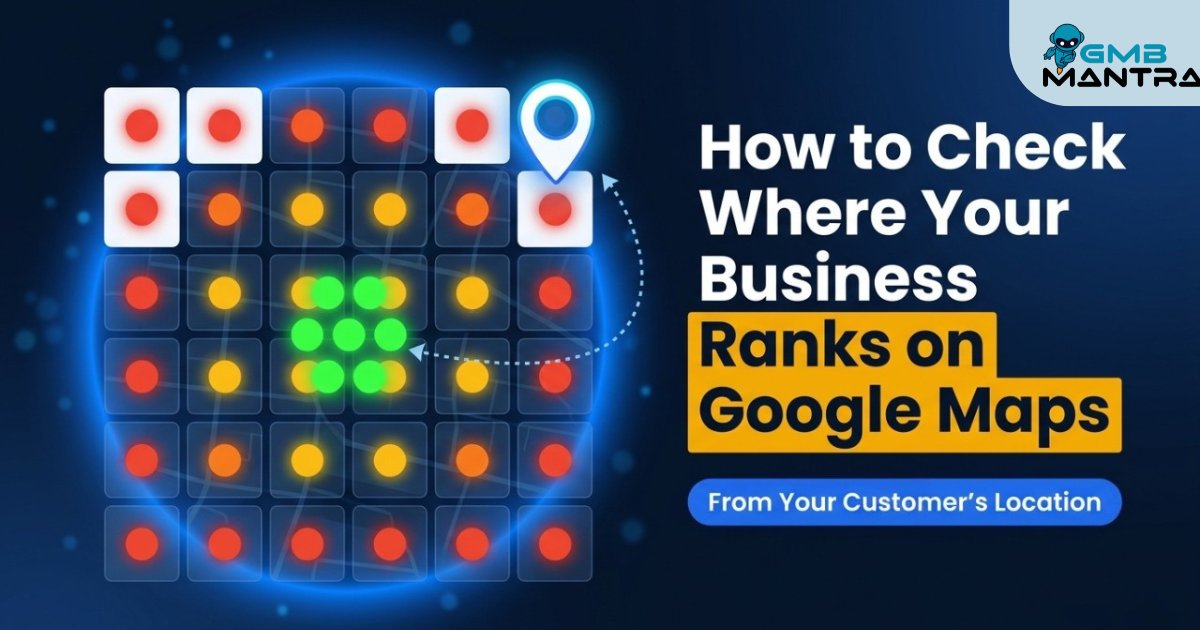
How to Check Where Your Business Ranks on Google Maps — From Your Customer's Location
You're staring at your phone, searching your main keyword, and there you are — sitting pretty at position #1 in the local pack. You screenshot it. You text it to your business partner. Maybe you even do a little fist pump.
I've been there. And I was dead wrong.
Here's what nobody told me: Google was showing me my own business at the top because I was standing inside my own building. The second I checked from a customer's neighborhood three miles away? Gone. Not #2. Not #5. Completely absent from the map results.
That's proximity bias doing its thing — and it fools almost every business owner I talk to.
By the end of this guide, you'll know exactly how to check where your business actually ranks on Google Maps from every location your customers search from, using a geo-grid scan that reveals your real visibility block by block.
What You Need Before We Start (The Pre-Flight Check)
Before running any scans, you need a few things locked down. Skip this and you'll get data that's either incomplete or misleading.
Your checklist:
- A claimed and verified Google Business Profile (GBP). If that blue "Verified" checkmark isn't showing in your GBP dashboard, stop here and handle that first.
- Your top 1-3 keywords — the actual phrases customers type, not what you wish they'd type. Think "emergency plumber near me," not "premium residential plumbing solutions."
- A rough idea of your service area. Where do your customers actually come from? Not where your office sits — where the people are.
- Access to a geo-grid rank tracker. (More on which ones in a sec.)
Your Stop/Go test: Can you name the exact keyword a customer would Google right before calling you? If yes, you're good. If you're guessing, spend 10 minutes in Google Search Console's search queries report first.
Phase 1: Understanding Why Your Phone Lies to You
Let's get this out of the way — checking your Google Maps ranking from your own phone or office computer is basically useless.
Google's local algorithm weighs three factors: relevance, prominence, and distance. That last one is the killer. When you search from your shop, Google knows you're right there. It prioritizes your listing because of raw proximity. Your customer searching the same keyword from two miles east? Google recalculates everything. Different searcher location, different results.
The data backs this up hard. Research shows 60% of business owners who check rankings from a single point miss hyper-local drops entirely — ranking top-3 at their front door but disappearing just two miles away. That's not an edge case. That's the norm.
(Between us: I spent an embarrassing amount of time celebrating rankings that only existed in a one-block radius around my office.)
And incognito mode? Logging out of your Google account? Those help a little with personalization, but they don't change your physical location. You're still searching from the same IP address, the same GPS coordinates. The proximity bias is still there.
So what actually works?
Phase 2: Setting Up Your First Geo-Grid Scan
A geo-grid scan does something simple but powerful: it checks your ranking from multiple geographic points simultaneously, then maps the results in a color-coded grid overlay.
Think of it like this — instead of checking your rank from one spot (your office), you're checking from 21 different spots spread across your service area. Each point simulates a customer searching from that exact location.
Here's how to run one:
Step 1: Pick your tool and enter your GBP.
Open your geo-grid rank tracker. Search for your business by name and connect your Google Business Profile. You should see your business name, address, category, and a map pin confirming the right location.
Visual checkpoint: Your business card appears with correct name, address, and phone number. If any of that NAP data looks off — wrong phone number, old address — fix it in your GBP dashboard before scanning. Inconsistent NAP is the #1 reason businesses ghost from grid results.
Step 2: Set your keywords.
Enter 1-3 keywords you want to track. Be specific. "Dentist" is too broad. "Emergency dentist [your city]" is what your customer actually types.
Step 3: Configure your grid.
This is where most people get it wrong. The default grid center is usually your business address. That's fine as a starting point, but you want grid points spreading into the neighborhoods where your customers live and search.
Set your grid to cover your realistic service area. A 7x7 grid at 1-mile intervals covers roughly a 7-mile radius — solid for most local businesses. Tighter grids (half-mile intervals) work better in dense urban areas.
Visual checkpoint: You should see a grid overlay on the map with evenly spaced dots radiating out from center. Each dot represents a simulated search location. If fewer than 50% of your grid points are populated after the scan, your coverage area might be too large for the tool's resolution.
Step 4: Run the scan.
Hit scan and wait. Most tools return results in under two minutes. What comes back is a color-coded grid map:
- Green dots = You're ranking in the top 3 (the local pack). This is where you're visible.
- Orange dots = Positions 4-10. You exist, but customers have to scroll.
- Red dots = Position 11+ or completely absent. Invisible.
Visual checkpoint: Hover over any dot to see your exact position for that keyword at that location. You should also see which competitors occupy the top spots where you don't.
Verification test: Pick 3-5 grid points, then manually search that keyword using a VPN set to those locations (or ask friends in those areas to search). If the manual results roughly match the grid data, your scan is accurate.
Phase 3: Reading the Grid (And Not Panicking)
Your first scan is almost always a gut punch.
That beautiful green cluster around your business? It fades fast. Most businesses see green within a tight radius — maybe 2-3 miles — then a wall of orange and red.
Here's the thing: that's normal. Research across 8,186 home service businesses in 200 cities found that 70% of businesses only rank top-3 within a 5-mile radius, and only after active prominence work (reviews, photos, GBP optimization). Proximity bias means your rankings naturally decay with distance.
The question isn't "why am I red everywhere?" It's "where are the winnable zones?"
What to look for:
- Competitor gaps. Overlay competitor data if your tool supports it. Red zones for you might also be weak for competitors — those are your opportunities.
- Unexpected dead spots. If you're green 3 miles north but red 1 mile south, something's off. Could be a competitor cluster, a zip code boundary issue, or a category mismatch.
- Consistency over time. One scan is a snapshot. Run weekly scans and compare. Wild color swings between scans usually signal algorithm volatility or NAP issues — not a real ranking change.
Verification test: Rescan after 24 hours. If your green dots hold steady, your baseline is solid. If colors shift dramatically, you've likely got a ghost error to chase down.
The Ugly Truth: Ghost Errors That Grids Expose
Here's what the clean tutorials skip — the weird stuff that makes your data unreliable until you fix it.
That SAB address issue is the one that gets people. Google's own guidelines suggest hiding your address if customers don't visit your location. But the proximity bias algorithm needs an address to calculate distance. Hide it, and you're essentially telling Google you're nowhere. It's a contradiction baked into the system itself.
The Tool That Makes This Practical
So here's the honest reality of geo-grid scanning: it's incredibly useful, but doing it manually — with VPNs and friends and incognito tabs — is a time sink that nobody maintains past week two.
> See Your Real Rankings From 21 Customer Locations > We built GBP Rank Tracker to solve exactly this problem. It scans from 21 grid points around your business, tracks up to 3 keywords at once, and gives you the color-coded grid map with competitor data and profile health scores. No subscription — it runs on a pay-as-you-go credit system starting at $5 per scan. If your grid just revealed some uncomfortable red zones, this is the fastest way to start tracking your real local visibility.
How Often Should You Actually Scan?
Weekly is the sweet spot for most businesses. Here's why:
Ranking improvements from GBP changes (new photos, review responses, category updates) take 2-4 weeks to show up in grid data. Scanning daily just gives you noise. But monthly is too slow — you'll miss competitor moves and algorithm shifts entirely.
The pattern I recommend: weekly scans for 90 days to establish your baseline, then biweekly for maintenance. If you make a major GBP change (new address, new primary category, big review push), scan immediately and again 14 days later to measure impact.
Sustained top-3 visibility across your full service area grid? That's typically a 1-3 month project of consistent GBP optimization — not an overnight fix.
Why does my business rank #1 when I search but my customers can't find me?
Google's proximity bias weights your physical distance to the searcher heavily. When you search from your own location, you're zero distance away — so you rank highest. Your customers are searching from miles away, where competitors closer to them may outrank you. A geo-grid scan from 21 points across your area reveals what customers actually see.
How many grid points do I need for an accurate local ranking check?
A minimum of 21 grid points (roughly a 5x5 or focused 21-point configuration) at 1-mile intervals gives reliable coverage for most local businesses. Dense urban areas benefit from half-mile spacing. If fewer than 50% of your points return data, tighten your radius or check for GBP verification issues.
Can I check my Google Maps ranking for free?
You can manually simulate it with incognito mode plus a VPN set to different locations, but it's painfully slow and inconsistent. Free tools exist but typically limit grid density and keyword count. For actionable multi-point data with competitor overlays, a dedicated local rank tracking tool saves hours and gives you scannable reports.
How long does it take for GBP changes to affect my grid rankings?
Most GBP optimizations (photo uploads, review responses, category adjustments) take 7-14 days to register in local search results. Larger changes like address updates or new service areas can take 2-4 weeks. Don't rescan the same day you make changes — you'll just see the old data and assume nothing worked.
What's the difference between checking one location vs. a full grid scan?
A single-point check tells you your rank from one spot. A grid scan checks from dozens of points simultaneously, revealing how rankings shift block by block across your service area. The data difference is massive — 60% of single-point checkers completely miss ranking drops happening just miles from their business.
Why do my grid rankings keep changing every week?
Minor fluctuations are normal — algorithm micro-updates, competitor activity, and review velocity all cause movement. Average your results over 7-day windows instead of reacting to individual scans. Consistent wild swings (green to red overnight) usually point to NAP inconsistencies or a GBP suspension flag worth investigating.
Now you know what your customers actually see when they search — and it's probably not what your phone's been telling you. The gap between "I think I rank well" and "I know where I rank, block by block" is where local businesses either grow or stay stuck wondering why the phone isn't ringing.
> Your next move: Run your first 21-point grid scan with GBP Rank Tracker and find out where you're actually visible — and where you're not.