How to Check Your Google Ranking for Free: 7 Tools US Businesses Actually Use
How to Check Your Google Ranking for Free: 7 Tools US Businesses Actually Use
Last Tuesday, a client called me in a panic. "We're ranking #1!" she said. I pulled up the data—Google Search Console had them at average position 14.7. Her free rank checker? It was showing results from a Dallas IP. She's in Phoenix.
That ten-minute conversation cost her nothing. But the three weeks she'd spent making decisions based on bad rank data? That cost plenty.
Here's what this post gives you: a no-fluff walkthrough of seven free rank-checking tools that US businesses actually rely on, how to use each one without getting tripped up by the quirks nobody warns you about, and which tool fits which job.
What Free Google Rank Checkers Actually Tell You (And What They Don't)
Free rank-checking tools scrape Google's search results for your domain and report where you appear for a given keyword. They return a position number—typically within SERP depth of the first 10 to 100 results—along with a timestamp, device type, and sometimes a snippet preview. But here's the thing most guides skip: no free tool shows you your Google ranking. They show you a Google ranking, from one location, at one moment, on one device. That distinction matters more than most people realize.
Before You Touch Any Tool: The Decision Matrix
You need three things ready before Step 1 makes any sense.
First, a verified Google Search Console property. If you haven't set up GSC, stop here. You need it for baseline average position data, and the 2FA setup requires a physical device if you haven't already enabled it. This is non-negotiable.
Second, your exact target keywords—written down, including location modifiers. "Plumber near me" and "plumber Dallas TX" are different queries with different rankings. Prep a list of 10 or fewer for real-time bulk checks, because that's where most free tools cap out.
Third, a Chromium-based browser. Chrome or Edge. Some tools like SEO Review Tools lack local search support, and Firefox occasionally renders SERP emulation differently.
Verification check: Can you log into GSC right now and see a green "Impressions" graph? Do you have a keyword list under 10 terms? Good. You're ready.
The 7 Tools and How to Actually Use Them
Tool 1: Google Search Console — Your Baseline (Not Your Bible)
Log into google.com/search-console. Select your property. Click Performance. Filter by query.
You'll see a table with an "Average Position" column showing numeric averages. That green Impressions graph spiking confirms your data's loaded.
Here's where I need to push back on conventional advice: GSC's "average position" is aggregated. It blends personalized results, mobile variance, and desktop data into one number. I've seen GSC report a position of 5 while a live checker shows #20—and both were technically correct. For spot-checks and real-time volatility, free live checkers actually catch what GSC averages miss.
Verification: If you see position data populating for at least 5 queries, your GSC baseline is set.
Tool 2: Rankability — The Quick Spot Check
Enter your domain. Input a keyword. Select US location and device type. Hit "Check."
A loading spinner labeled "Checking rankings..." appears for 10-30 seconds depending on keyword volume. When it resolves, you get a "Ranking Results" card showing position number, SERP snippet preview, and a timestamp.
The friction nobody mentions: Rankability caps you at 5 checks per hour. Exceed that and you'll see a persistent "Error" spinner that looks identical to a tool failure. It's not broken—you're rate-limited. Walk away for 60 minutes or switch to mobile data to bypass the IP throttle.
Tool 3: SE Ranking's Free Checker — Local Pack Visibility
This is where rank tracking gets interesting for businesses managing Google Business Profiles. SE Ranking shows daily breakdowns in a clean table with blue highlights marking SERP features—including that Local Pack icon you're hunting for.
Cross-reference your Google Business Profile dashboard Insights with SE Ranking's local pin for ZIP-specific or city-specific results. That blue-highlighted "Local Pack" column tells you if you're in the top 3 map pack.
Friction warning: Most free tools default to country-level results. If you don't manually select your city or ZIP, you're looking at global data. I spent two hours troubleshooting a "ranking drop" for a client before realizing the tool was set to the wrong country. Geo-specific pinning matters.
SE Ranking also recently added AI Overviews tracking around Q4 2025. One thing I noticed with a client: their snippet win showed up beautifully in the SERP features column, but actual click-through traffic was flat. AI Overviews had essentially stolen the clicks. Position isn't everything anymore.
Tool 4: SERPWatch — Bulk Without a Login
Paste 1-10 keywords into the list box. No account required. You get an instant SERP scrape with position numbers and timestamps.
I ran 50 keywords through a free SERP tool once for an agency client and got my IP banned for 24 hours. Learned the hard way to rotate and split batches. Keep it under 10 at a time and you're fine.
Verification: Each keyword returns a position card with a "Checked" timestamp. If all 10 resolve, you're good.
Tool 5: Click Intelligence — Competitor Analysis That Actually Works
Input a competitor's URL alongside your target keywords. The table populates with Ranking Position, Search Volume, and a green traffic estimate bar.
This one saved a client pitch for me. A competitor's keyword cannibalisation was hiding behind a difficulty filter—Click Intelligence's export to CSV exposed it instantly. Look for the grayed-out "Track" button; it won't activate until the URL validates.
Tool 6: SEO Review Tools — The Export Workhorse
Run your check, then click "Export to CSV." The download button glows green.
The ghost error that haunts this tool: Your CSV opens blank in Excel. Not a bug—open it in Google Sheets instead, or re-run on a Chromium browser. I've seen this confuse people into thinking the tool failed when it's purely a formatting compatibility issue. Also, the 10-keyword cap trips up anyone trying bulk analysis. No historical data without a paid upgrade, either.
Tool 7: LinkGraph — Rounding Out the Stack
LinkGraph's free tier gives you position checks with search volume context. It's straightforward—enter keywords, get a table. The value here is the traffic estimation alongside raw position, which helps prioritize which rankings actually matter to your revenue.
The Numbers That Should Change How You Think About This
GSC requires 48-72 hours post-verification before data populates for new properties. Most free tools cap real-time bulk checks at 10 keywords. Rankability's rate limit sits at 5 checks per hour. And here's the one that gets me: position volatility can swing rankings hourly, which is why I tell clients to check during peak business hours—9AM to 12PM EST—and ignore the noise outside that window.
Ghost Errors: The Stuff Manuals Won't Tell You
The weirdest one I see repeatedly: a free checker shows rank 1, but GSC says average position 15. The fix is almost always location mismatch. Use the exact ZIP code in your checker. GSC is averaging across personalized and mobile variance that the free tool doesn't account for.
Another: "Checking..." hangs for over 30 seconds on bulk keywords. Split your list below 10 and switch to mobile data. It's an IP rate limit, not a server issue.
Local Pack rankings invisible on desktop? Toggle the mobile filter and add a city modifier. GBP Insights tracks map pack separately from organic web SERP—they're different datasets entirely.
Where This All Connects
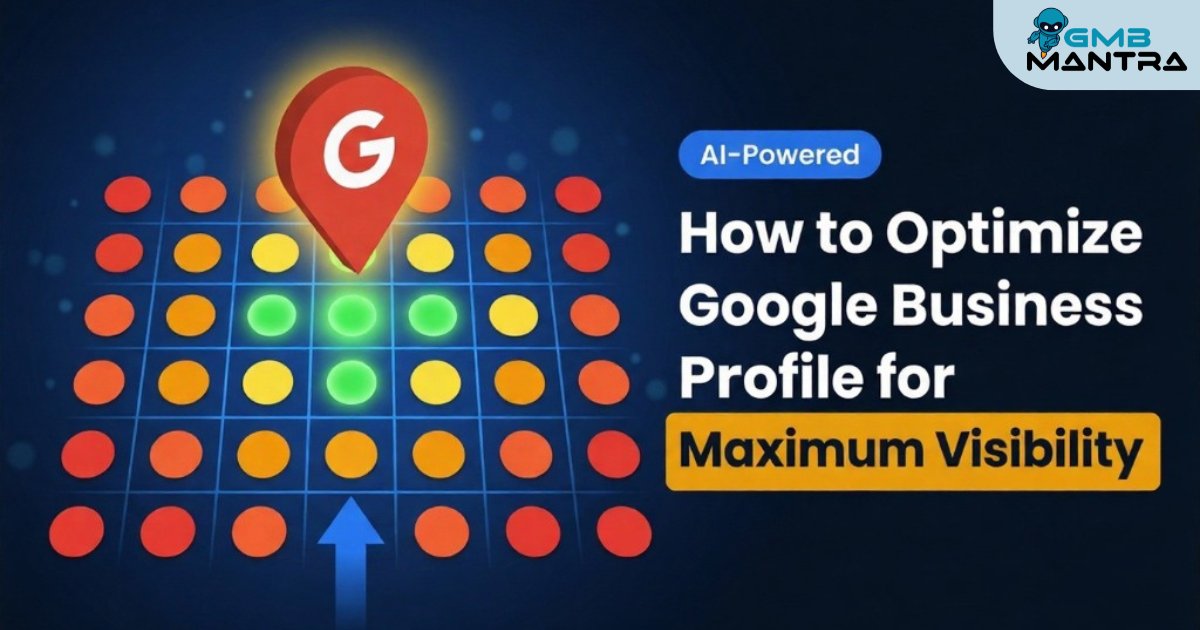
If you're managing multiple Google Business Profiles and juggling rank tracking, citation management, and competitor analysis across locations, the manual tool-hopping I've described gets old fast. That's where a platform like GMBMantra fits naturally—it consolidates GBP management, local SEO optimization, and performance insights with keyword heatmaps into one dashboard. For businesses scaling past the "check one keyword at a time" phase, it's the logical next step.
FAQ
Why does my free rank checker show a different position than an incognito Google search?
Free checkers scrape from a specific server IP and location, which rarely matches your personal browsing environment. Incognito removes cookies but doesn't eliminate geographic or device-level personalization. Always set the checker's location to your target ZIP code and device type to get comparable results. The gap between tools and manual checks is normal—not a sign of tool failure.
How do I track Google Map Pack rankings without paid tools?
Use SE Ranking's free local checker with city-level geo-specific pinning, then cross-reference with your Google Business Profile Insights under "Search terms." The combination gives you Local Pack visibility data without a subscription. For deeper multi-location tracking, GMBMantra offers heatmap-level keyword insights.
My GSC shows "No data" for a new Google Business Profile despite getting traffic—what's wrong?
Wait 48-72 hours after property verification. Force a refresh by checking in incognito with cleared cache. New GBP properties take time to populate in Search Console's Performance report. If data still doesn't appear after 72 hours, re-verify ownership.
Can browser VPNs affect free SERP checker accuracy for US locations?
Yes. A VPN routes your traffic through different IPs, which can conflict with the checker's own geolocation settings. Disable VPNs when running rank checks, or the tool may pull results from a location that doesn't match your target market. Stick to your actual connection and let the tool's built-in location filter handle geographic targeting.
So—which of these seven are you starting with today, and what's the first keyword you're checking?